
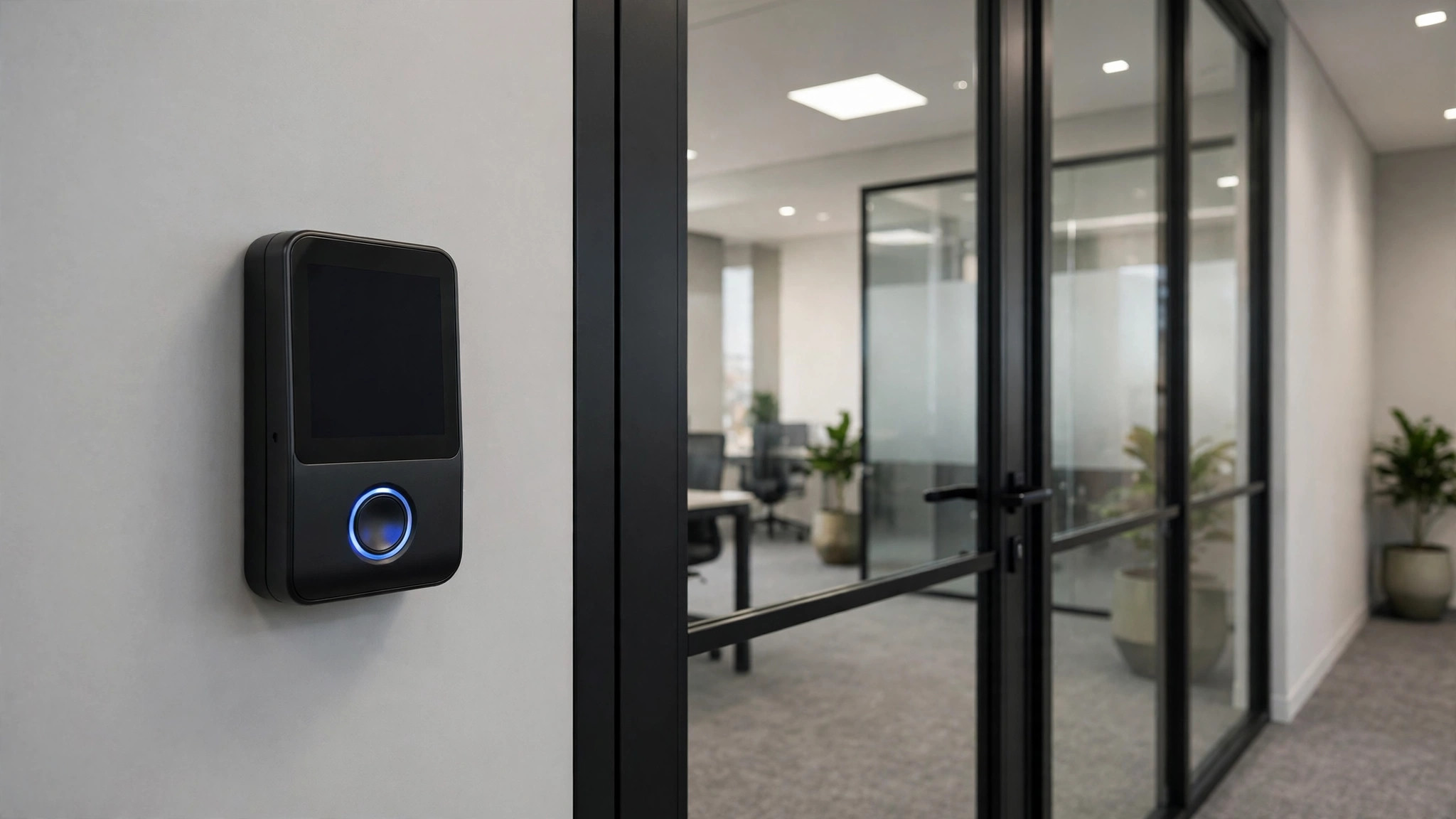
If someone steals one of your employees passwords, what stops them from walking straight into your mailbox, your files and your business systems? For most small and mid-sized businesses, the honest answer is: nothing. That is the gap multi-factor authentication (MFA) closes. It costs little, it takes about ten minutes per person to set up, and it turns a stolen password from a full breach into a failed login attempt.
What MFA actually is
MFA means proving your identity in two different ways before you are let in. The first factor is usually something you know — your password. The second is something different: something you have, such as your phone or a hardware security key, or something you are, such as a fingerprint or face scan on your own device. An attacker would need both, not just one, and the second factor is far harder to steal at scale than a password. Business MFA applies that same idea consistently to the accounts holding your company data.
Why passwords alone no longer hold up
Passwords fail in predictable ways. People reuse them across personal and work accounts, so a breach at an unrelated website can hand over a work password. Phishing emails are designed to capture them, and staff under time pressure do click. Even a strong, unique password can be phished in a single convincing message. With MFA enabled, that stolen password gets the attacker only as far as the second-factor prompt, which they cannot complete — which is why it protects the accounts attackers target first: email, cloud storage and remote access.
Which second factor should you choose?
Not all second factors are equal, and the best choice is the one your team will actually use every day:
- Authenticator app (recommended for most teams): An app on the employee phone generates a code or sends an approve-or-deny prompt. It works without mobile signal and is the best balance of security and convenience.
- Hardware security key: A small USB or NFC key you tap to sign in — the strongest common option, ideal for administrators and finance staff.
- Biometrics on the device: Fingerprint or face unlock on a phone or laptop — convenient, but tied to that device.
- SMS code: Better than nothing, but the weakest option: codes can be intercepted and depend on mobile coverage. Use SMS only as a fallback.
Rolling MFA out without locking anyone out
- Start with the highest-risk accounts: Business email and cloud accounts first, then VPN and remote access. Administrators and owners first — their accounts are the most valuable targets.
- Pick one standard method: Choose the authenticator app as the company standard so IT supports one process, not four. Offer hardware keys for admins and anyone who prefers them.
- Run a short enrolment session: Ten minutes per person: install the app, scan the setup code, test a sign-in, and save the backup options — done together in the office, so problems surface immediately.
- Set up a backup method for everyone: A second device, printed backup codes kept somewhere safe, or an alternative method. Losing your only second factor is the number-one cause of MFA lockouts.
- Keep one break-glass admin account: A separate administrator account with its own hardware key, stored securely, so the business is never locked out.
Answering the usual objections
"It will slow everyone down." A code or tap adds a few seconds to a sign-in, and most systems remember a trusted device for a period, so staff are not prompted on every login. That is trivial next to the time lost recovering a compromised mailbox.
"What if someone loses their phone?" That is exactly what the backup method is for. With a second device or backup codes registered in advance, IT can restore access quickly.
"Senior staff should be exempt." No. Senior accounts are targeted precisely because they can approve payments, access contracts and reset other accounts. An exemption for leadership is an open door.
Common mistakes to avoid
- Enabling MFA but leaving it optional — attackers will target the accounts that never switched it on.
- Protecting email but forgetting VPN, remote desktop and cloud storage, which lead to the same data by another route.
- Using SMS as the only method for everyone, including administrators.
- Skipping the backup method and discovering the gap during a lost-phone emergency.
- Never reviewing access: when someone leaves, disable their account and its MFA registrations promptly.
A practical note for UAE businesses
Many Dubai businesses now work across office, home and client sites, with staff travelling and signing in from different networks and devices. That flexibility is good for business and risky if a password is the only check. MFA travels with the person rather than the office: the same second factor protects the account whether the sign-in happens at a desk, from home, or on a client site. It is also worth confirming that MFA is switched on for any supplier or contractor accounts that can reach your systems, not just for your own employees. Ten minutes per person, one standard method, and a backup for everyone.
Request a quote, call us on (04) 359 4874, or message us on WhatsApp at +971 52 562 1946 for a free site survey — we will review your email, cloud and remote-access accounts, switch on MFA across your team, and make sure every user has a working backup method.