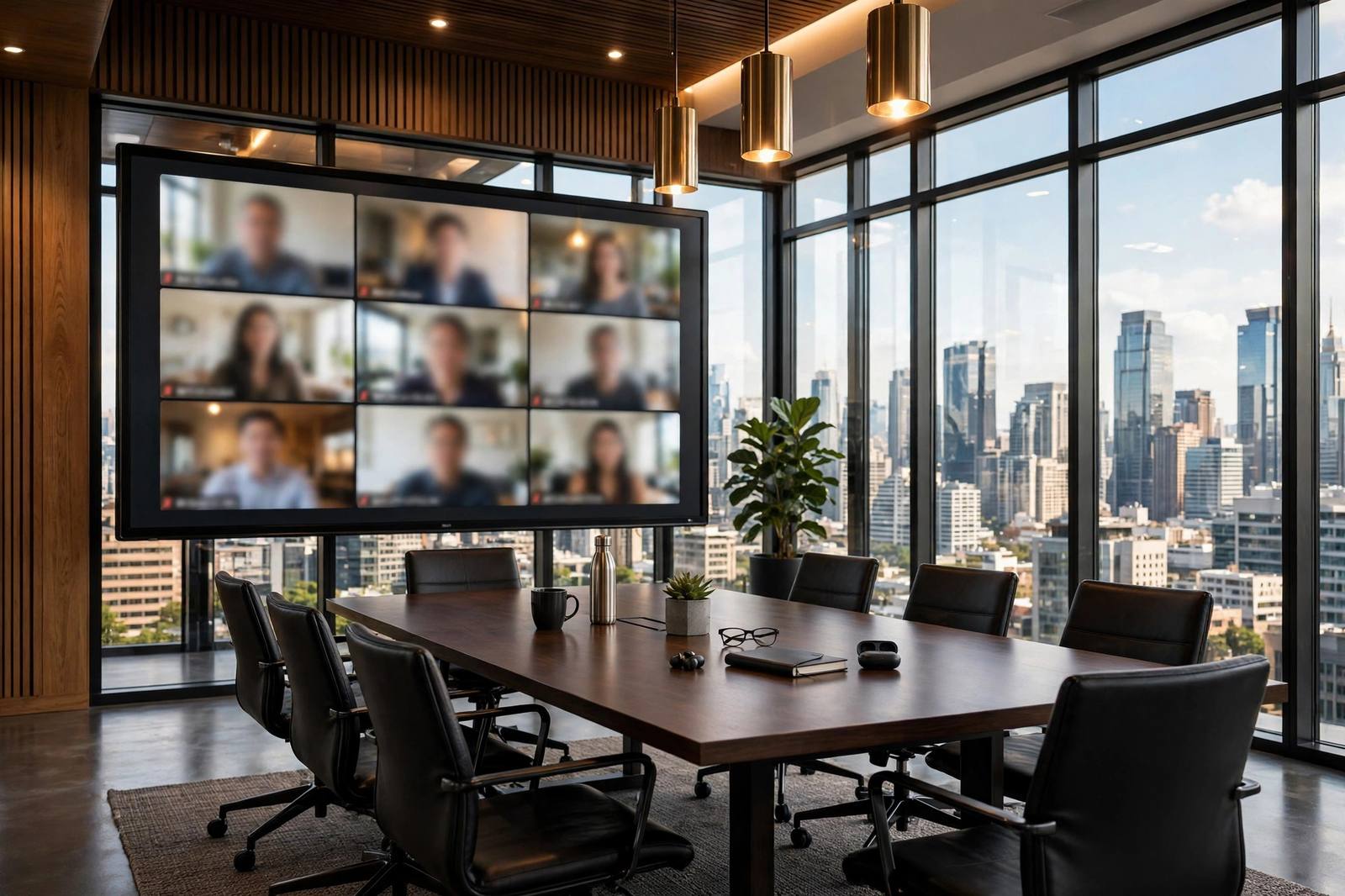
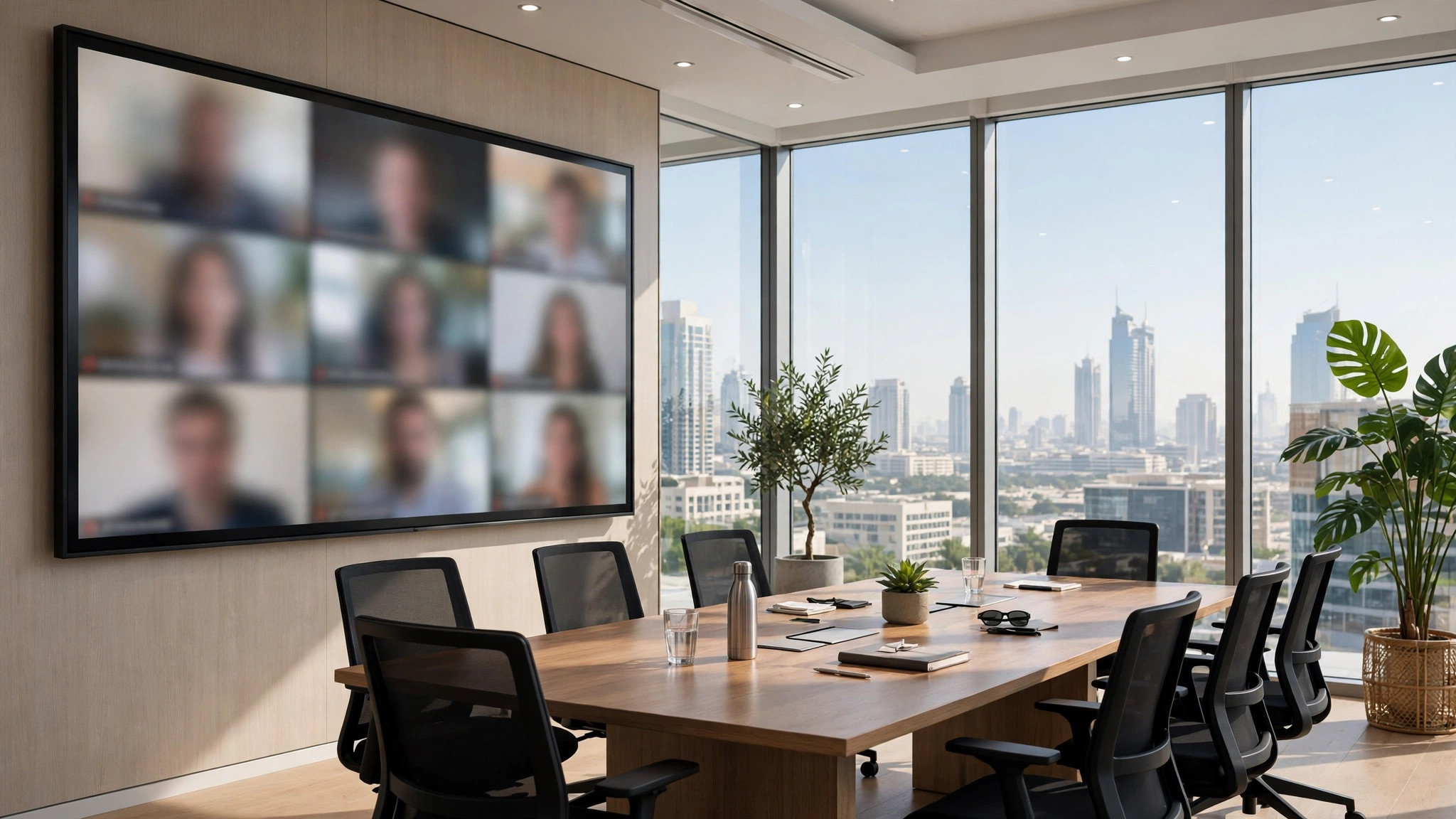
Everyone has suffered the meeting room where the far end can't hear, the camera shows the ceiling, and ten minutes vanish to "can you see my screen?" Most of it is avoidable. Here's how to set up meeting rooms that just work — from huddle spaces to boardrooms.
Rule one: audio matters more than video
People tolerate mediocre video; they abandon calls with bad audio. Budget priority should be microphones first, camera second, display third. In rooms for six or more, a single table mic won't cut it — you need ceiling mics or expansion microphones matched to the table length.
Size your room, then your kit
- Huddle room (2–4 people): an all-in-one USB bar like the Logitech MeetUp covers camera, mics and speaker in one unit. Simple, affordable, no rack of gear.
- Small room (4–6): a compact all-in-one bar with a wider field of view and better mic pickup.
- Medium room (6–12): this is where dedicated systems earn their keep — Logitech Rally Bar or Yealink MeetingBar A40 class devices, with expansion mics for longer tables.
- Boardroom (12+): multi-camera setups (e.g. Logitech Rally with additional cameras), ceiling microphone arrays and proper DSP. Always designed after a site visit — never bought off a shelf.
Teams Rooms vs BYOD
Two ways to run the room: BYOD (bring your own device) — the room bar plugs into a laptop via USB and uses whatever app the laptop runs; or a dedicated Microsoft Teams Room / Zoom Room — an in-room compute unit with a touch console (like Logitech Tap) that joins meetings natively, no laptop needed. BYOD is cheaper and flexible; dedicated rooms are smoother for back-to-back meetings and guests. Pick one approach per office and standardise — mixed estates confuse everyone.
The unglamorous details that make or break it
- Network: wire the room system with Ethernet. Wi-Fi is fine for laptops; it's not fine for the room's primary video feed.
- Display: size it for the back row — a 55" screen is lost in a 6-metre room. Two displays (people + content) transform presentations.
- Lighting: avoid windows behind participants; even, front-facing light beats an expensive camera every time.
- Acoustics: glass-walled rooms echo. Soft furnishings, acoustic panels or ceiling treatment are cheaper than any echo-cancelling algorithm.
- Cable discipline: one tidy table hub beats a nest of HDMI cables. Wireless presentation ends the "which cable?" ritual.
Common mistakes
- Buying a huddle-room bar for a 10-person room and wondering why nobody is heard.
- Skipping the touch console — without one, every meeting starts with laptop gymnastics.
- No admin plan: who updates firmware, who do users call when it fails?
- Forgetting remote management — platforms like Logitech Sync let IT monitor all rooms from one dashboard.
Standardise across offices
If you run multiple offices, standardise on one room platform: the same bar in every huddle room, the same console in every boardroom. Users walk into any room and know how to start a meeting, IT stocks one set of spares, and support tickets drop sharply. The premium for standardisation pays back in the first year of fewer "the room isn't working" calls.
Finally, budget ten minutes of user training per room at handover. The best-engineered room still fails if nobody knows which button starts the meeting.
And keep one spare HDMI cable in every room anyway. Wireless presentation is wonderful until a guest's laptop refuses to cooperate five minutes before the pitch.
We design, supply and install video conferencing rooms across the UAE — Logitech Rally systems, Yealink MeetingBars and Microsoft Teams Rooms from our catalogue, installed, configured and tested before we leave. Get an instant estimate or book a room survey.